Add a colleague to your account
Invite a teammate to your VerifyPDF account. This explains who can send invitations, how the invite flow works and why you invite one person at a time by email.
Your VerifyPDF account is shared by your whole company. When you add a colleague, they join the same account and share the same document history, API keys, billing and document allowance. You invite people one at a time by email.
Who can add a colleague
You can add a colleague only if both of these are true:
- You are an admin on the account.
- The account is on a trial, Professional or Corporate plan.
Basic-plan accounts cannot add colleagues, so the User management menu does not appear. Regular members never see it either. To learn what each role can do, see Admin and member roles.
Send an invitation
- Open the profile menu in the top right.
- Click User management.
- Click Add a new user.
- Enter the colleague’s full name and email.
- Click Invite.
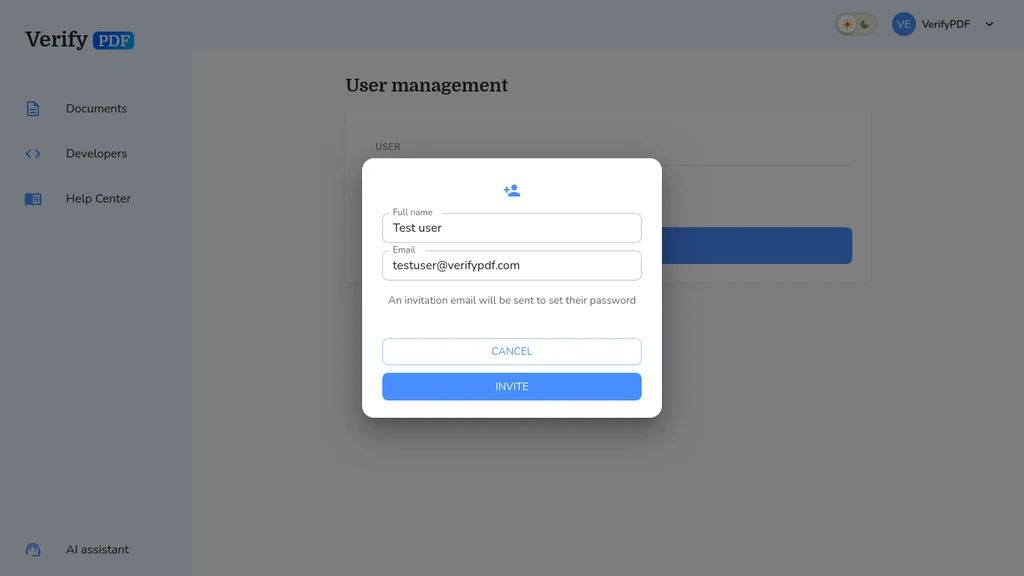
VerifyPDF sends an invitation email to that address. Your colleague clicks the link and sets their own password. You do not set a password for them.
New users always start as a regular member, not an admin. You can promote them later. See Remove a colleague or change admin.
One colleague at a time
You invite people by email, one at a time. There is no bulk upload or shared invite link. To add several teammates, repeat the steps above for each person.
What your colleague sees next
Your colleague gets an email showing who invited them. They click the link, set a password and log in at secure.verifypdf.com. For their side of the process, see Accept an invitation.
If their email is already used on another VerifyPDF account, the invitation is refused. In that case they need to use a different email address.