Test vs live API keys
Use a test API key while you build your integration and a live API key for real verifications. Test keys return deterministic responses and never charge billing; live keys run the full analysis.
VerifyPDF lets you create two kinds of API key, test and live. Use the right one for the right stage so you keep your build work separate from real verifications. Both are real, supported keys.
A test key never charges your billing or processes real files. It returns deterministic responses, so you can wire up and verify your integration safely. A live key runs the full analysis and consumes your plan’s documents.
Start with a test key, then switch to a live key when you are ready.
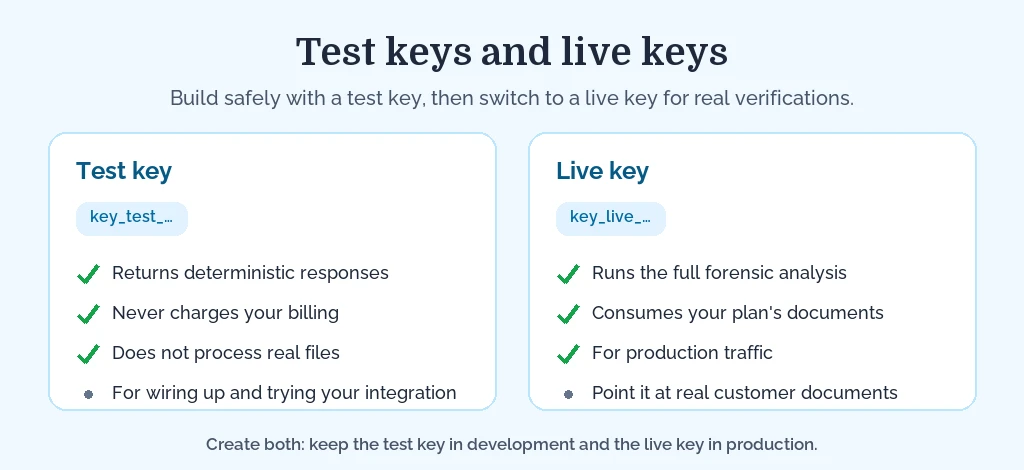
When to use a test key
Use a test key while you build and try out your integration. Because it returns deterministic responses and never touches your billing or real files, it is the safe choice for:
- Wiring up your code for the first time.
- Checking that requests and responses look right.
- Running examples from the API reference.
When to use a live key
Use a live key for real verifications, once your integration works and you are ready for production traffic. It runs the full analysis and consumes your plan’s documents, so it is the key your customer-facing systems should use day to day.
Create each key
You create both kinds the same way, in the dashboard:
- Sign in at secure.verifypdf.com and open Developers in the left sidebar.
- Select Create key.
- Choose test or live for the key type.
- Give it a clear name, for example
Checkout - testorCheckout - live. - Copy the full key once. You will not see it again. See Generate and manage API keys.
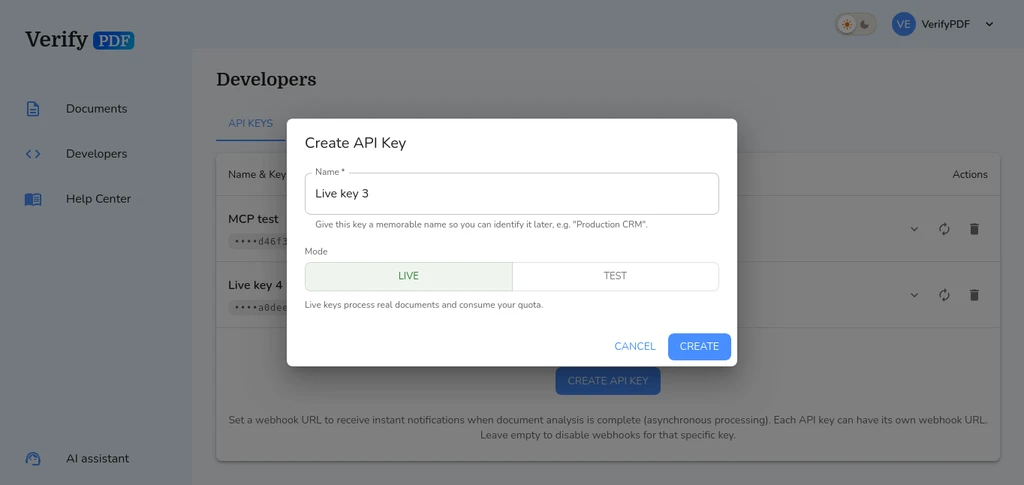
A good habit is to name keys so the type is obvious, so nobody points a test key at production by mistake.
Allowance still applies
A live verification consumes one document from your allowance or prepaid balance, just like a dashboard upload. See How prepaid bundles work.
Next steps
- Ready to send a document? See Verify a document with the API.