Find and manage past documents
Search and page through your VerifyPDF history, open a document's details and delete documents one at a time or in bulk.
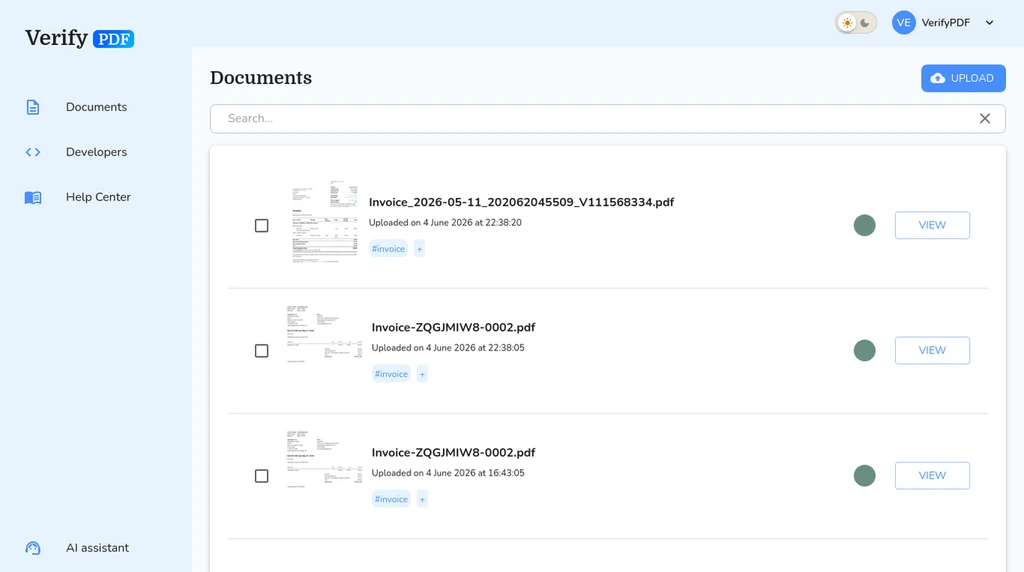
Every document you verify stays on the Documents page so you can find it later. The list is searchable and paginated, and you can open, download or delete any document.
Browse and search your history
- Open the Documents page in the dashboard at secure.verifypdf.com.
- The list is paginated, so use the page controls to move through older documents.
- Use the search to find a specific document by its details.
- Each row shows a risk-band indicator and any tags, so you can scan for high-risk results at a glance.
If you verify documents through the API, you can attach your own reference, called a custom_id, to find a document later. Each custom_id must be unique. The full detail lives in the developers section.
Open a document’s details
Click any document to open its detail view. From there you can:
- See the full trust score, fraud-risk rating and warnings.
- Download the PDF report or switch its language.
Delete a single document
- Open the document or find it in the list.
- Click delete.
Delete several at once
To clear out many documents in one step:
- Select the documents you want to remove from the list.
- Click Delete selected.
All selected documents are soft-deleted together.
What to do next
- Need a copy first? Download the report before you delete.
- Learn how VerifyPDF protects customer data on the Security page.