Generate and manage API keys
Create an API key in the Developers section, copy it once at creation, then rename, rotate or delete keys. You can have up to 10 keys, shared across your whole organization.
API keys let your own systems connect to VerifyPDF. You manage them in the dashboard under Developers. This article shows you how to create a key and keep your keys tidy.
Create an API key
- Sign in at secure.verifypdf.com.
- Open Developers in the left sidebar. It is always visible there.
- Select Create key and give it a clear name, for example
Billing systemorTest integration. - The full key is shown once, right after you create it. Copy it now and store it somewhere safe.
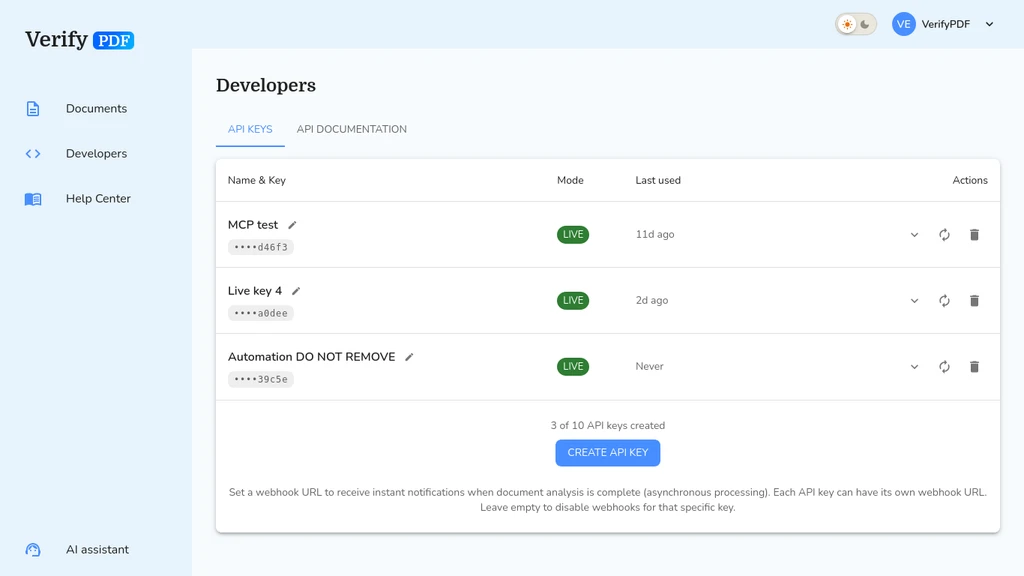
After you close that screen, VerifyPDF only shows a masked version of the key (the last few characters) plus a last used time. There is no way to reveal the full value again.
You can have up to 10 keys at a time. If you reach the limit, delete a key you no longer use to free up a slot.
Keys are shared across your organization
API keys are organization-wide, not personal. Any teammate with dashboard access can see the masked keys and manage them. Treat a key like a shared password. For who has access, see Admin and member roles.
Rename, rotate or delete a key
From the Developers section you can:
- Rename a key so its purpose stays obvious as your team grows.
- Rotate a key when it may have leaked or when you want a fresh value. Rotating gives you a new key to copy once, then update your integration.
- Delete a key you no longer use. Any system still using a deleted key will stop working, so remove it from your integration first.
Keep your keys safe
- Copy the full key the moment it is shown. You will not see it again.
- Never paste a key into public code, chat or screenshots.
- Rotate a key right away if you think it has been exposed.
Next steps
- Building first? See Test vs live API keys.
- Ready to call the API? See Verify a document with the API.