Change your password or email
Update your VerifyPDF sign-in details. This explains how to change your password or email, why you must re-enter your current password and how to delete your account.
You change your sign-in details on the Edit Profile page. Updating your email or password is sensitive, so VerifyPDF asks you to re-enter your current password first. This confirms it is really you.
Open Edit Profile
- Open the profile menu in the top right.
- Click Edit Profile.
Your name, company name and language are also on this page. Those fields save without a password re-check.
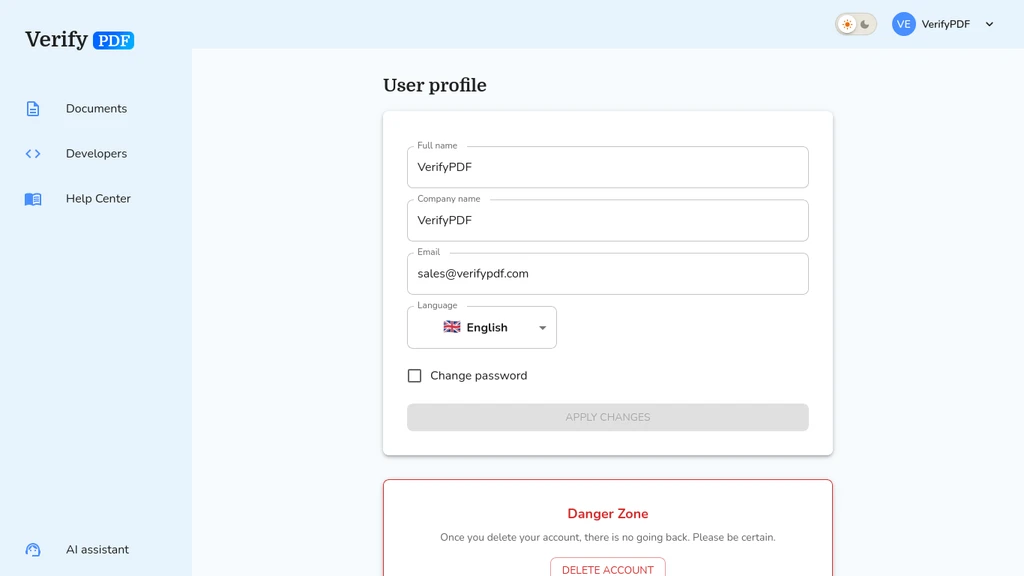
Change your password
- Enter a new password.
- Confirm the new password.
- Enter your current password when asked.
- Save your changes.
Use your new password the next time you log in.
Change your email
- Enter your new email.
- Enter your current password when asked.
- Save your changes.
From then on, you log in with the new email address.
Why the re-check happens
Changing your email or password could let someone take over your account if your session were left open. The current-password step blocks that. It runs only for these two changes. Your name, company name and language save without it.
Delete your account
Account deletion is permanent and lives in the Danger Zone of your profile. Deleting your account cannot be undone.
Before you can delete your account, two conditions must be met:
- Cancel any active subscription first. While a subscription is active, the option stays blocked.
- Remove all secondary accounts first. If you have added other users, remove them before you delete.
When both are met, you confirm the deletion with your password. After that, the account is gone for good.
If you cannot log in
If you forgot your password and cannot reach Edit Profile, use the forgot password flow on the login page at secure.verifypdf.com. It sends a link so you can set a new password by email. This is also the way an invited colleague can set a password if their welcome email never arrived. See Accept an invitation.