Submit a document for verification
Upload original PDFs or identity-document images in the VerifyPDF dashboard, understand the file rules and wait for each fraud-risk result to arrive.
You submit documents from the Documents page in the dashboard. VerifyPDF analyzes each file and gives you a trust score and a fraud-risk rating.
Before you start
- You need an account at secure.verifypdf.com.
- Each file is either an original PDF (for financial and official documents), ideally downloaded directly from the bank, employer, portal or issuer, or an image (JPG, PNG, HEIC/HEIF) for an identity document.
- You need at least one document left in your allowance. If you have no plan, your allowance is zero and you cannot upload.
File rules
VerifyPDF accepts original PDFs for financial and official documents, and images (JPG, PNG, HEIC/HEIF) for identity documents such as passports, driver’s licences, national IDs and residence permits. It does not accept Word files, spreadsheets or files that were renamed to end in .pdf without really being one.
Use the original PDF as downloaded from the source whenever possible. Do not split a statement into separate files, stitch screenshots into a PDF or re-export the file through another tool just to make it upload. Those changes can remove the signals that make the document useful to verify. For an identity document, upload a clear photo or scan rather than a “print to PDF”. See Verify an identity document.
Each file can be up to 100 MB. If the original source file is larger than that, contact support rather than changing the file.
Best practices
- Prefer the original file. Download the PDF directly from the source (bank portal, payroll system, accounting software) rather than printing and re-scanning it.
- Do not re-process documents. Re-printing, re-scanning or “printing to PDF” strips the original digital fingerprints and can make a genuine document harder to verify.
- Use good photos for IDs. Fill the frame, avoid glare and blur and capture the whole document.
Upload your documents
Start on the Documents page and select Upload in the top-right to open the upload panel.
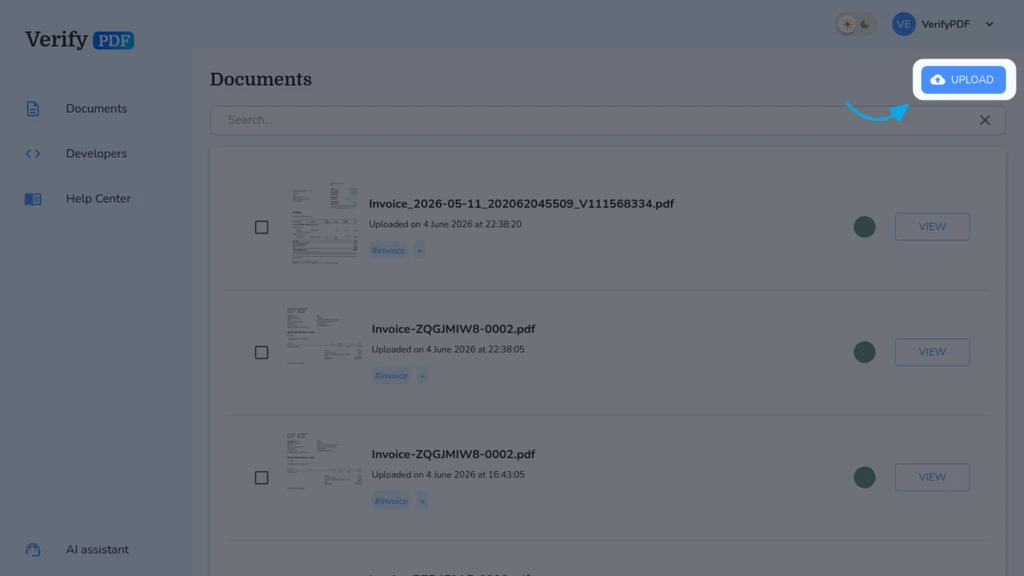
- Log in at secure.verifypdf.com. You land on the Documents page.
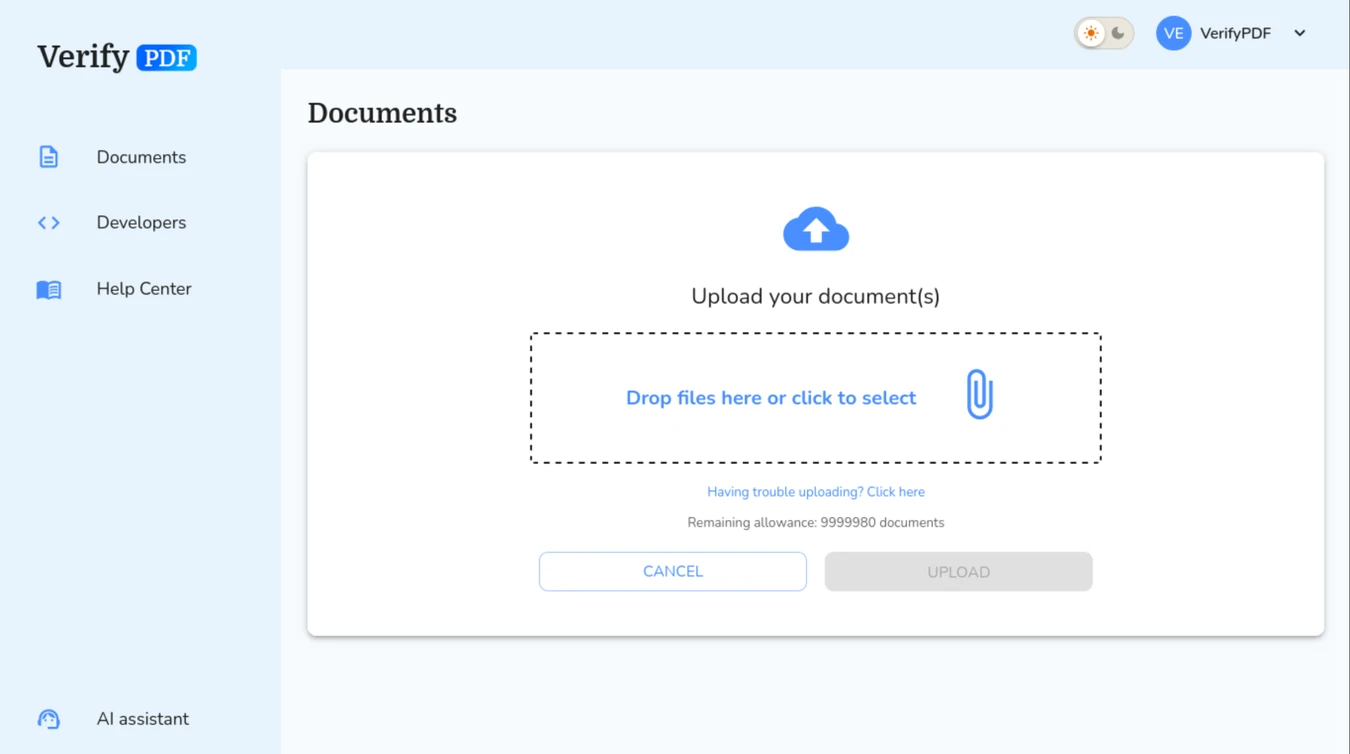
- Select Upload in the top-right, then drag one or more files onto the upload panel, or click the panel to browse and pick files.
- You can upload up to 10 files at once. If you pick more, only the first 10 are accepted.
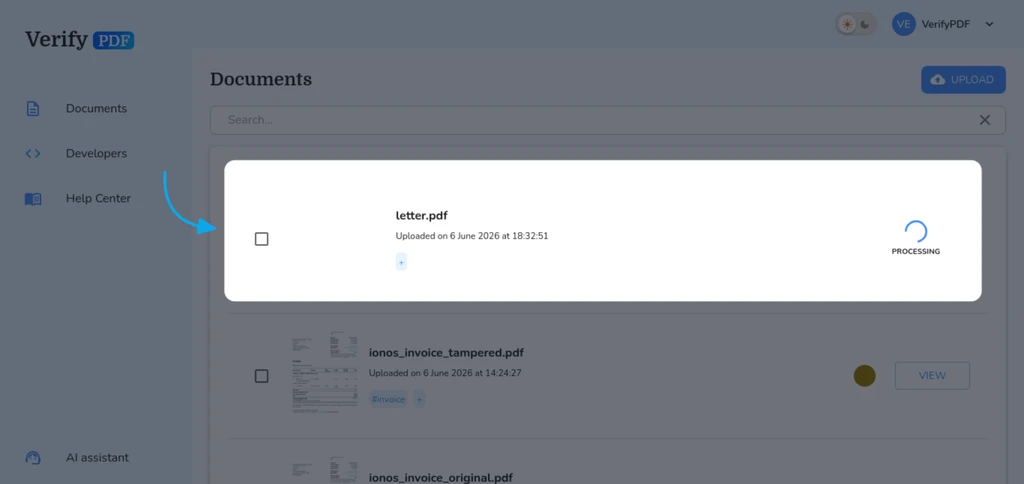
- The documents appear in your list right away, each with a processing spinner.
Wait for the results
Analysis runs in the background, so you do not have to watch it.
Most documents finish in about 5 seconds, especially simple one-pagers like a single payslip. Larger or more complex files take longer: a document with many pages or many fraud warnings can take up to 3 minutes, such as a 260-page bank statement. Each result appears on its own as soon as it is ready, so you can stay on the page or come back later.
Almost every document ends up Analyzed, with a trust score and a fraud-risk rating. If something is wrong with the file you may see Password-protected or Corrupted instead. See document failed to upload to fix either one.
Check your allowance
Each analyzed document uses one document from your plan or your prepaid bundle. When your allowance runs out, the upload panel is disabled until you top up. To see how many you have left, check your usage and allowance.
What to do next
- Open a result and learn how to read your verification result.
- Find earlier uploads on the past documents list.