Set up webhooks
A webhook lets VerifyPDF call your own URL when a verification result is ready, so your system is notified instead of polling. Set an https webhook URL per API key.
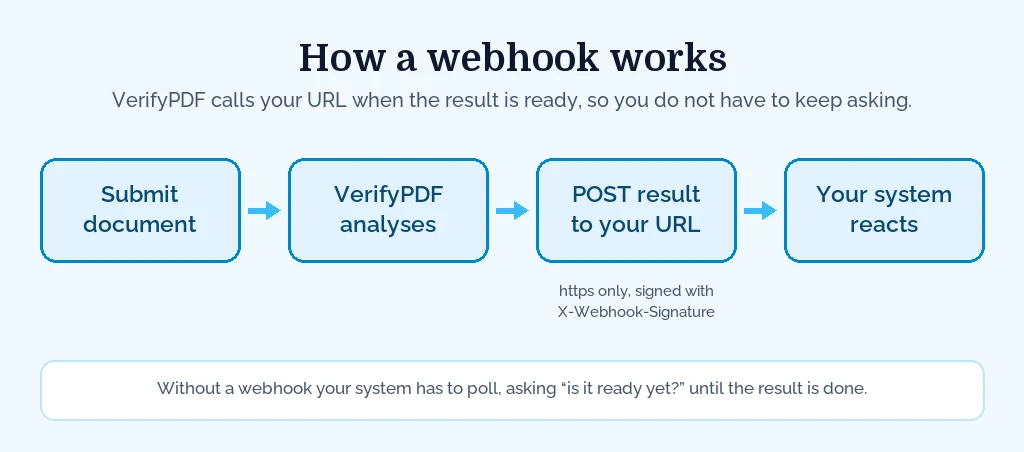
A webhook is a way for VerifyPDF to tell your system that a result is ready, instead of your system asking again and again. This article explains the idea and how to turn it on.
What a webhook is, in plain terms
When you verify a document, the result is not always ready instantly. Without a webhook, your system has to keep checking, “is it done yet?” That is called polling.
A webhook flips that around. You give VerifyPDF a URL on your own system. When a result is ready, VerifyPDF calls that URL and sends the outcome to you. Your system reacts to the call instead of polling for changes.
Set a webhook URL per key
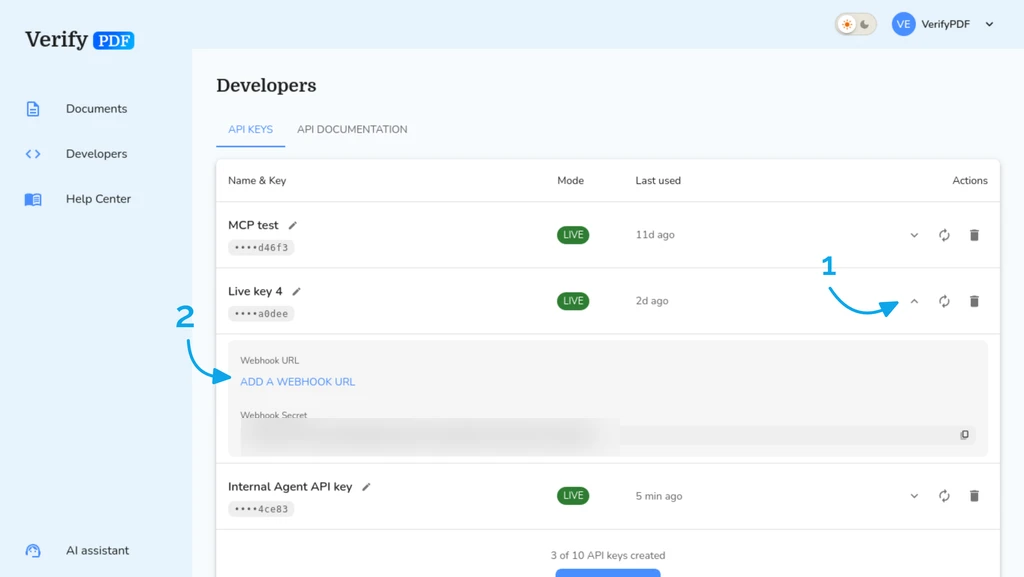
Each API key can have its own webhook URL. You set it in the dashboard:
- Sign in at secure.verifypdf.com and open Developers in the left sidebar.
- Pick the API key you want to use and edit its webhook URL by clicking on the arrow to expand the webhook configuration section.
- Save. The URL must start with https://.
Because the URL is set per key, you can route notifications from different integrations to different endpoints, for example a test key pointed at a test URL and a live key at your production URL. See Test vs live API keys.
To turn webhooks off for a key, leave the URL field empty and save.
What VerifyPDF sends
When a verification finishes, VerifyPDF calls your webhook URL so your system can act on the result, for example updating a case or alerting a reviewer. For the exact payload and how to verify that a call really came from VerifyPDF, see the API reference at /agents/ and the in-dashboard Developers docs.
Next steps
- Need a key first? See Generate and manage API keys.
- Want the full sending flow? See Verify a document with the API.