Change or cancel your plan
Upgrade right away with a prorated charge, downgrade at the end of your period, cancel at period end and reactivate before your access runs out.
You can change or cancel your plan at any time from the Billing page. How the change applies depends on whether you are upgrading, downgrading or cancelling. This article explains each path. For what each plan includes, see Plans explained.
Before you start
Billing is admin-only, so only an admin can change or cancel a plan. Sign in at secure.verifypdf.com and go to Billing.
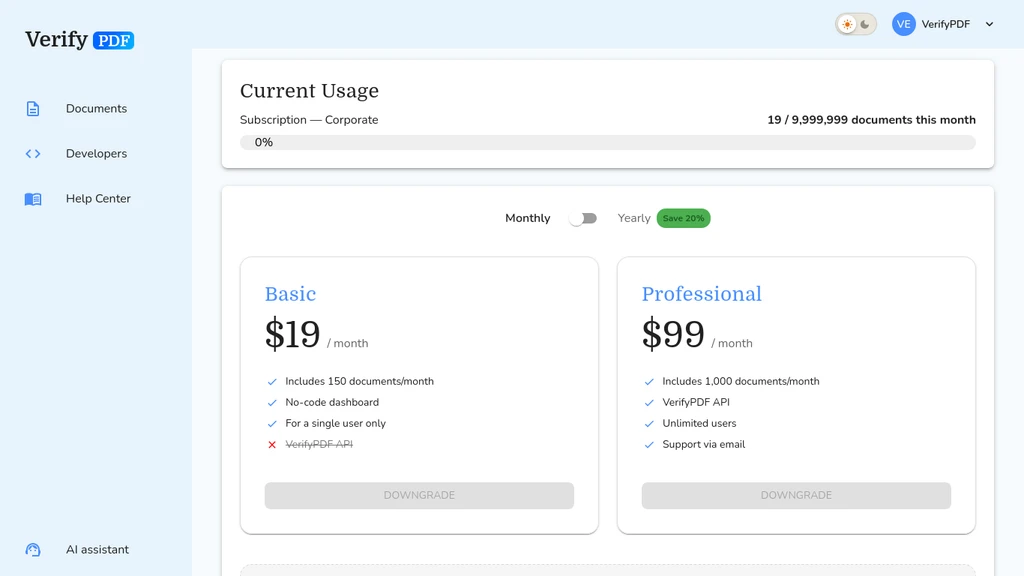
Upgrade your plan
Upgrades take effect right away and are prorated. You see the prorated charge before you confirm, so there is no surprise. Pick the higher plan, review the charge, then confirm. Your larger allowance is available at once.
Downgrade your plan
Downgrades take effect at the end of your current billing period. You keep your current allowance until then, so you do not lose documents you already paid for. Pick the lower plan and confirm. The change applies at your next renewal.
Start a brand-new subscription
If you are starting a paid plan for the first time, for example from a trial, VerifyPDF sends you to Stripe Checkout to set up payment.
Cancel your plan
To cancel, turn the auto-renew toggle off on the Billing page. This opens a cancellation dialog.
- Cancellation takes effect at the end of the current period.
- You keep access until then.
- You can reactivate before the period ends if you change your mind.
Update your card or find invoices
To change your payment card or download invoices, open the Stripe customer portal from the Billing page. See Find your invoices.